Open follower settings
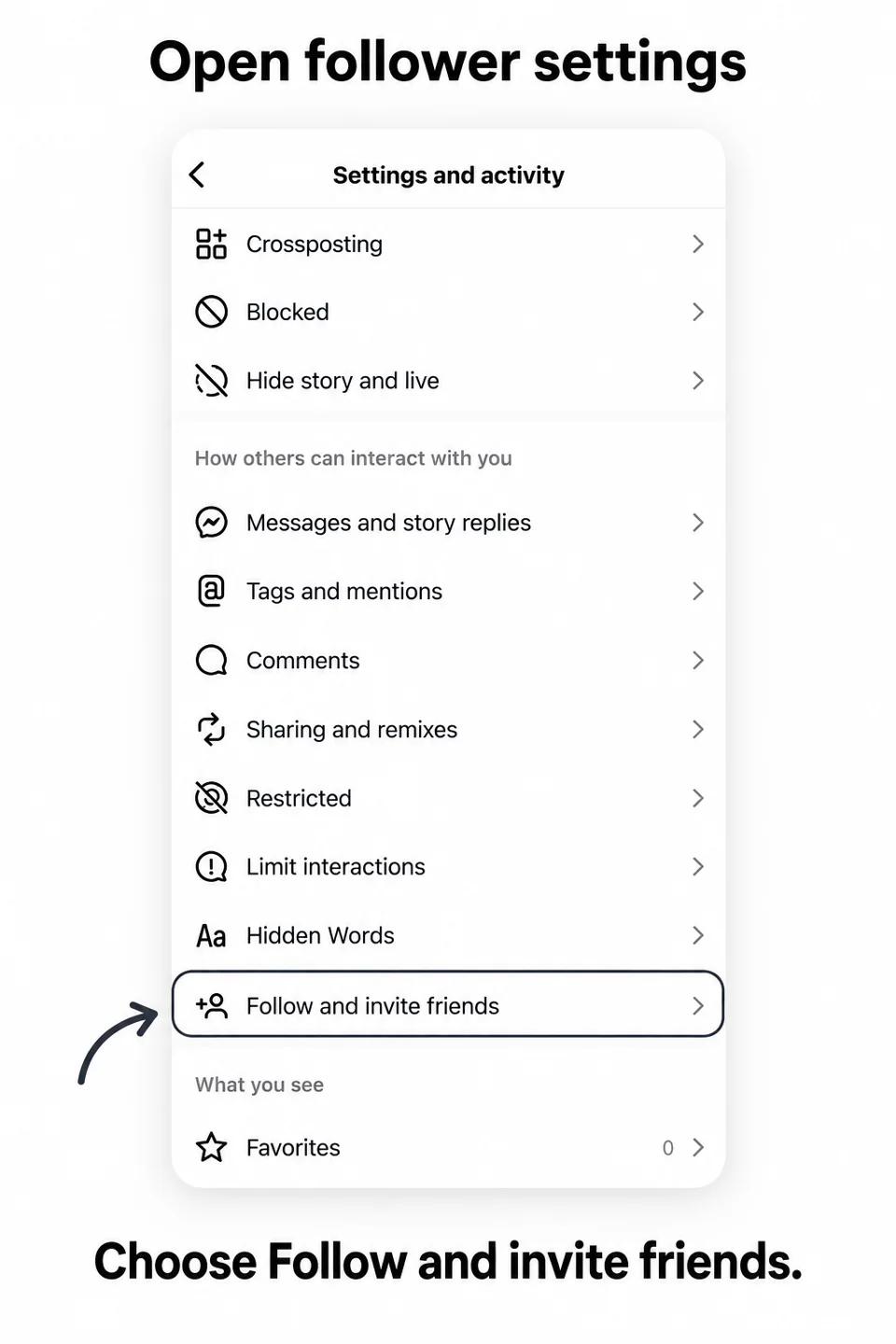
From Settings and activity, choose Follow and invite friends. Menu names may differ by app version and language.

Choose the right service, check your order details and know what happens after payment. This guide follows the English storefront and account area, with real interface screenshots and a short video.
Take 30 seconds to check your profile settings and the service description.
Turn off Flag for review before buying followers. When it is enabled, some followers may be held for approval in the flagged list instead of appearing in your main followers list.
Profile → ☰ Menu → Settings and privacy → Follow and invite friends → Flag for review → Off
نمایه (پروفایل) ← منوی سهخط ☰ ← تنظیمات و حریم خصوصی ← دنبال کردن و دعوت از دوستان ← پرچمگذاری برای بررسی ← خاموش
Menu names and locations can vary by Instagram version and language. You may see Settings and activity or Followers and contacts. If you cannot find the option, search your settings for Flag for review.
username, without a leading @. If the service asks for a profile link, use https://www.instagram.com/username/. A post link is not suitable for a followers order.Follow the ordering steps below. If you are unsure about the link or package conditions, contact Digi Follower support before paying. Keep your order ID ready for follow-up.
Start with your Instagram profile, then open the three-line menu to find your account settings. Look for Follow and invite friends or Followers and contacts, as shown in these example screens.
From Settings and activity, choose Follow and invite friends. Menu names may differ by app version and language.
If your account has this option and you choose to turn it off, check that it matches the example below. In the light theme, the switch becomes pale gray when off.
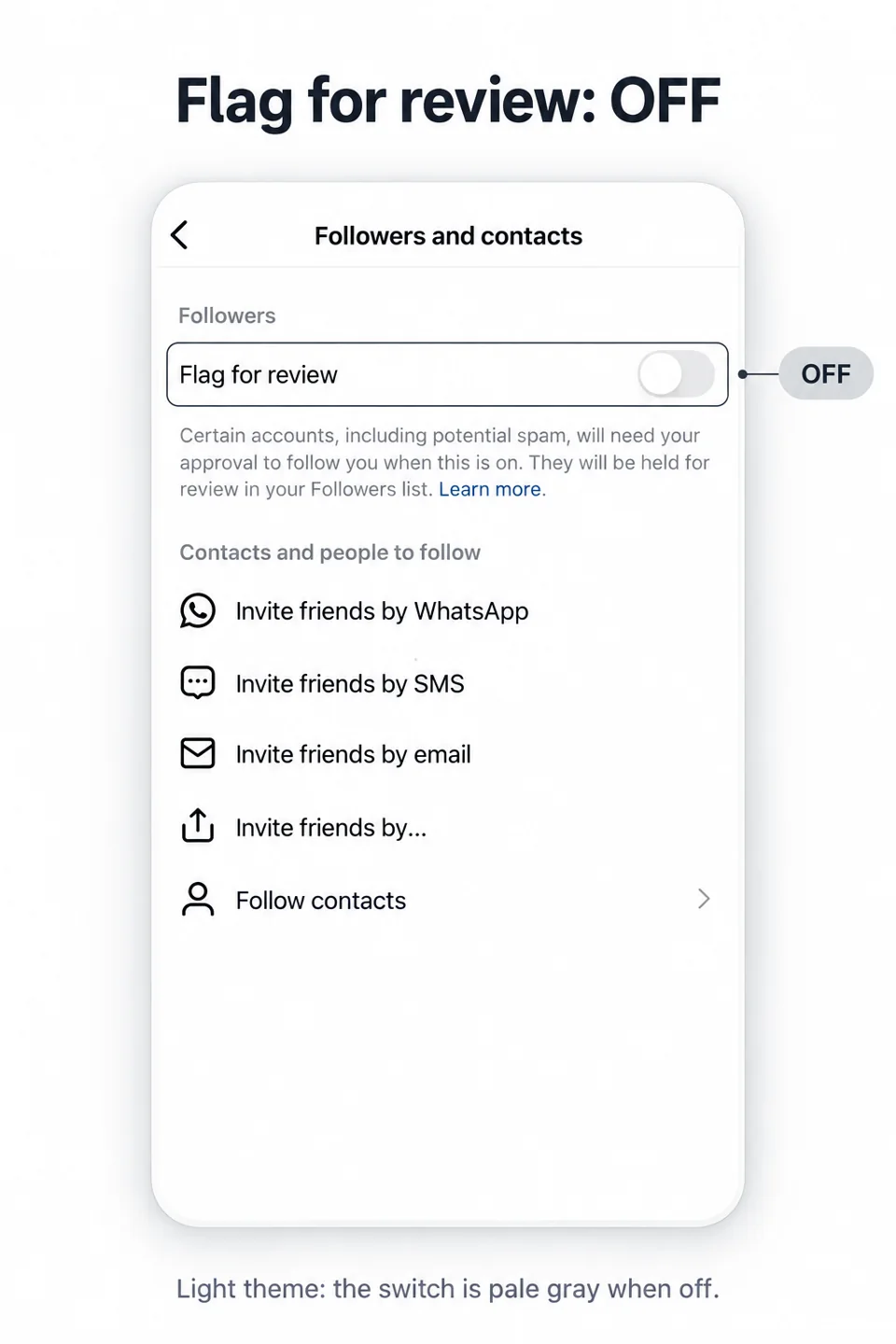
These are instructional redraws based on example screens. Appearance and availability can vary. This setting controls review of potential spam followers; changing it does not guarantee delivery, retention or engagement. Once checked, continue with the ordering steps below.
The written steps below cover the same workflow. Screenshots show an example, not a fixed price or a completed order. Available services and payment options can change.
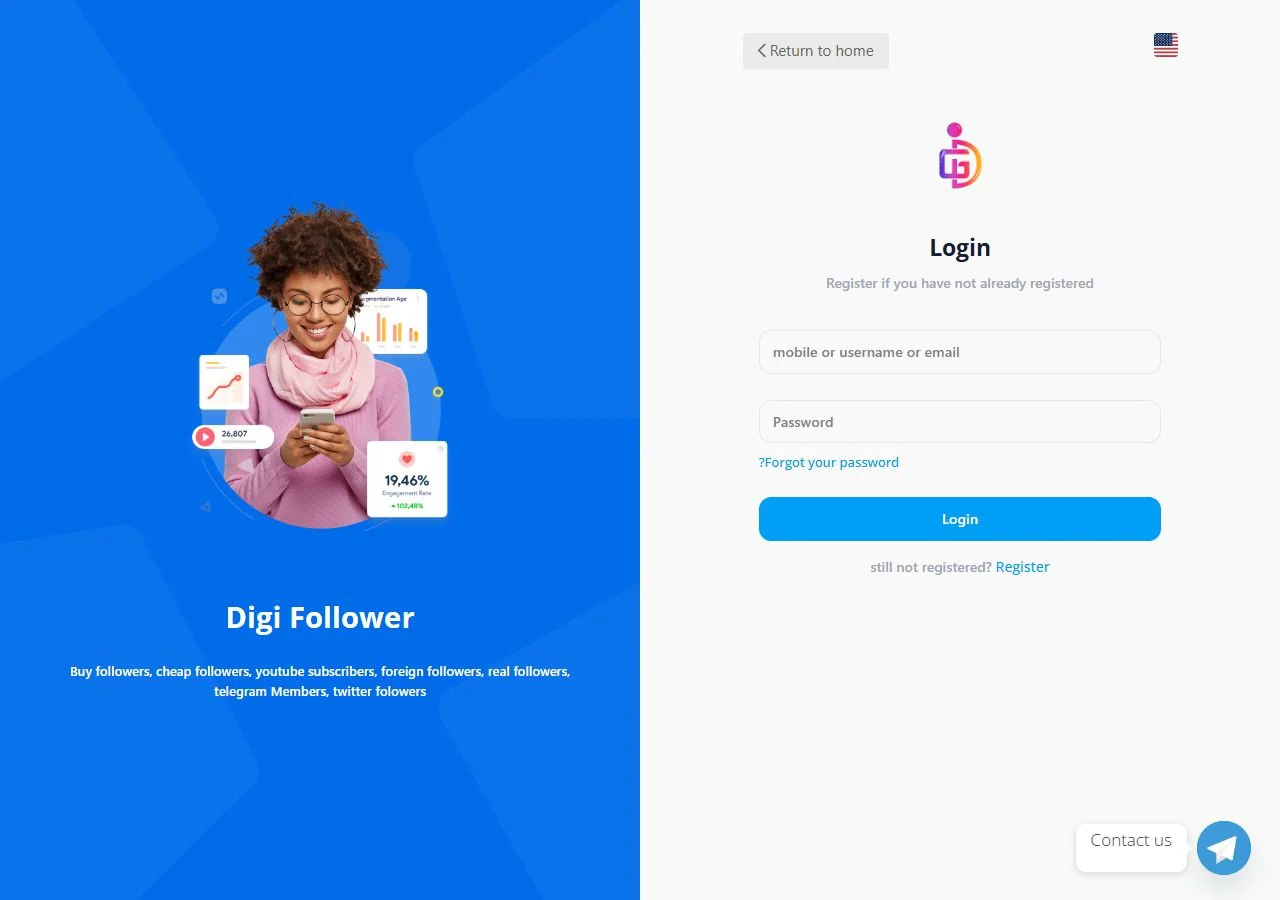
Use your Digi Follower account. New customers can choose Register on the login page and follow the fields shown there. Your website password is separate from your social account password.
Open the English homepage Instant Purchase form or Send order. Choose the platform category, then the specific service. Check its description, minimum, maximum and refill or cancellation conditions.
Use the destination requested by the service. Check the link, number of units and calculated total before continuing. A profile link and a post link are different destinations.
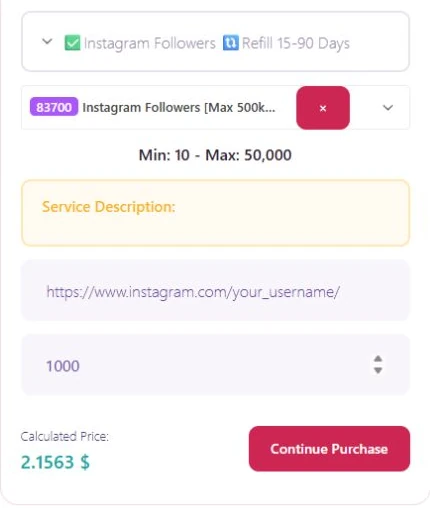
Open your destination link in another tab to check that it is correct and accessible. While an order is running, avoid changing the username, making the destination private, or deleting the target post. If the service description is blank or unclear, contact support before paying.
In your account, select Add funds to open the Add balance page. Choose an available gateway and enter the amount. At the time this guide was checked, the English account page listed Heleket and separate manual USDT instructions. Use the options and payment limits currently shown in your own checkout.
Follow the gateway instructions and check the currency, amount and payment status. Return to Digi Follower and confirm that the payment or account balance has updated. A browser closing or a bank/wallet deduction by itself is not proof that an order was created.
Read the current address and network on Add funds. The manual deposit instructions currently specify USDT on BNB Smart Chain (BEP20). After sending, message @follloower on Telegram with the TXID, amount, network and your Digi Follower website username. Support must verify receipt before adding credit.
Qualifying manual USDT deposits currently have extra-credit tiers: over 100 USDT +10%, over 300 +15%, over 500 +20%, and over 1,000 +25%. Only the highest eligible tier applies once after verification. For deposits over 1,000 USDT, contact support before sending. Always check the live terms before transferring.
Return to the order form. Recheck the selected service, destination, quantity and final amount. If the site asks you to verify or log in to your account, complete that step, then review the details again. Use the final order or payment button only when you are ready to purchase.
After confirmation, keep the order ID and check your Orders list. If no order appears, check the payment status and balance before submitting again. Avoid placing duplicate orders for the same destination while the first request is unresolved.
Open Orders in your account and find the order ID. Start time and completion time depend on the selected service and quantity. “Pending”, “Processing” or “In progress” does not mean the order has finished.
Partial means only part of an order was delivered; Canceled means it will not continue. Check the order details and any balance adjustment. Cancellation and refill are service-dependent options: a visible request button is not a promise of immediate approval or a cash refund.
For definitions and next steps, read the order status guide. For a payment problem, send Telegram support your website username, payment reference or TXID, amount and time. For a delivery problem, include the order ID and a short description. Never include passwords or recovery codes.
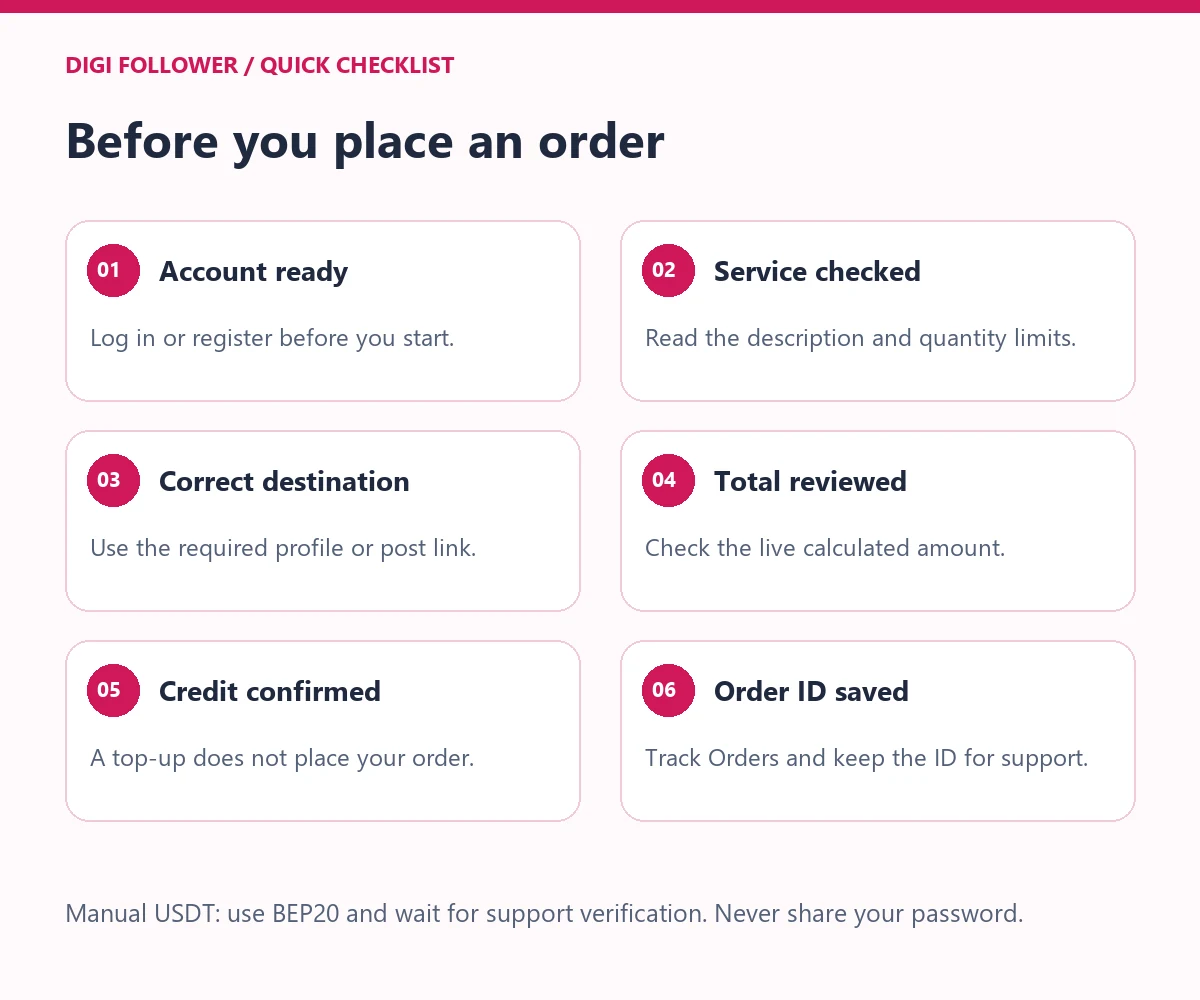
You can browse public service pages and the storefront. Sign in to manage your balance and orders. Some steps or services may require an account before you can continue.
Check that a category and service are selected, the destination is filled in and the quantity is within the displayed limits. If the form still does not advance, sign in and open Send order or the Order section in your dashboard. Contact support if the issue remains; do not repeatedly attempt payment.
Use the current calculated total in your order form and check its currency. Screenshots in this guide are examples. Rates, available packages and minimum quantities can change.
A top-up adds account credit. It does not automatically submit a service order. Confirm that the credit is available, then return to the order form and complete its final confirmation.
First check the payment status and whether an order or balance adjustment already exists. For a manual USDT transfer, send the TXID and account details to Telegram support for verification. For another gateway, send its payment reference. Ask support before making a second payment.
No. Availability, waiting periods and eligibility depend on the service you selected. Read its terms before buying. Check the order details or ask support if no request option appears.
Check the current service description and order status. Any listed start time or speed is specific to that service and may be an estimate. There is no single delivery time that applies to every order.
For an order: your order ID and the issue. For a payment: your website username, gateway reference or TXID, amount, network where relevant, and time. Send these privately through the support link; never share your password or login codes.